by
by In this tutorial, we explain how to install Gazebo inside of the ROS2 Jazzy Jalisco working installation and in Linux Ubuntu 24.04. Since Gazebo Harmonic is a recommended version of Gazebo for ROS2 Jazzy Jalisco, we will explain how to install Gazebo Harmonic. Note that Gazebo Harmonic is not Gazebo Classic that works with previous versions of ROS2 such as ROS2 Iron Irwini or ROS2 Humble. Also, you will have to completely rewrite pieces of ROS2 code to be compatible with Gazebo Harmonic. More about this in our future tutorials. The YouTube tutorial accompanying this webpage is given below:
Also, a number of users have reported issues installing Gazebo Harmonic inside of ROS2 Jazzy Jalisco. The issue appears to be with a single command that has to be executed after the installation. We will explain this later on.
There are two ways to install and run Gazebo Harmonic:
- Install and run Gazebo Harmonic independently from ROS2 Jazzy Jalisco. That is, install and run Gazebo Harmonic as a stand-alone application. This installation procedure is explained in our previous tutorials.
- Install and run Gazebo Harmonic inside of the ROS2 Jazzy Jalisco Installation. In this tutorial we will explain how to perform this type of installation such that you can easily integrate Gazebo with ROS2 nodes and applications.
First, let us verify that you have a proper version of Linux Ubuntu and ROS2. To install Gazebo Harmonic inside of ROS2 Jazzy Jalisco, you have to have Ubuntu 24.04. Open a terminal and type
lsb_release -aThen, to verify that ROS2 Jazzy Jalisco is properly installed, type this
source /opt/ros/jazzy/setup.bash
echo ${ROS_DISTRO}
If ROS2 Jazzy Jalisco is properly installed, the output should be
jazzyYou can also type this
printenv ROS_DISTROand the output should be the same
jazzyWe can install Jazzy Jalisco by using a single command. First, open a new terminal and type
sudo apt-get update
sudo apt-get upgrade
Then, type
sudo apt-get install ros-${ROS_DISTRO}-ros-gz

source /opt/ros/jazzy/setup.bash
And after that, to test the installation, simply type
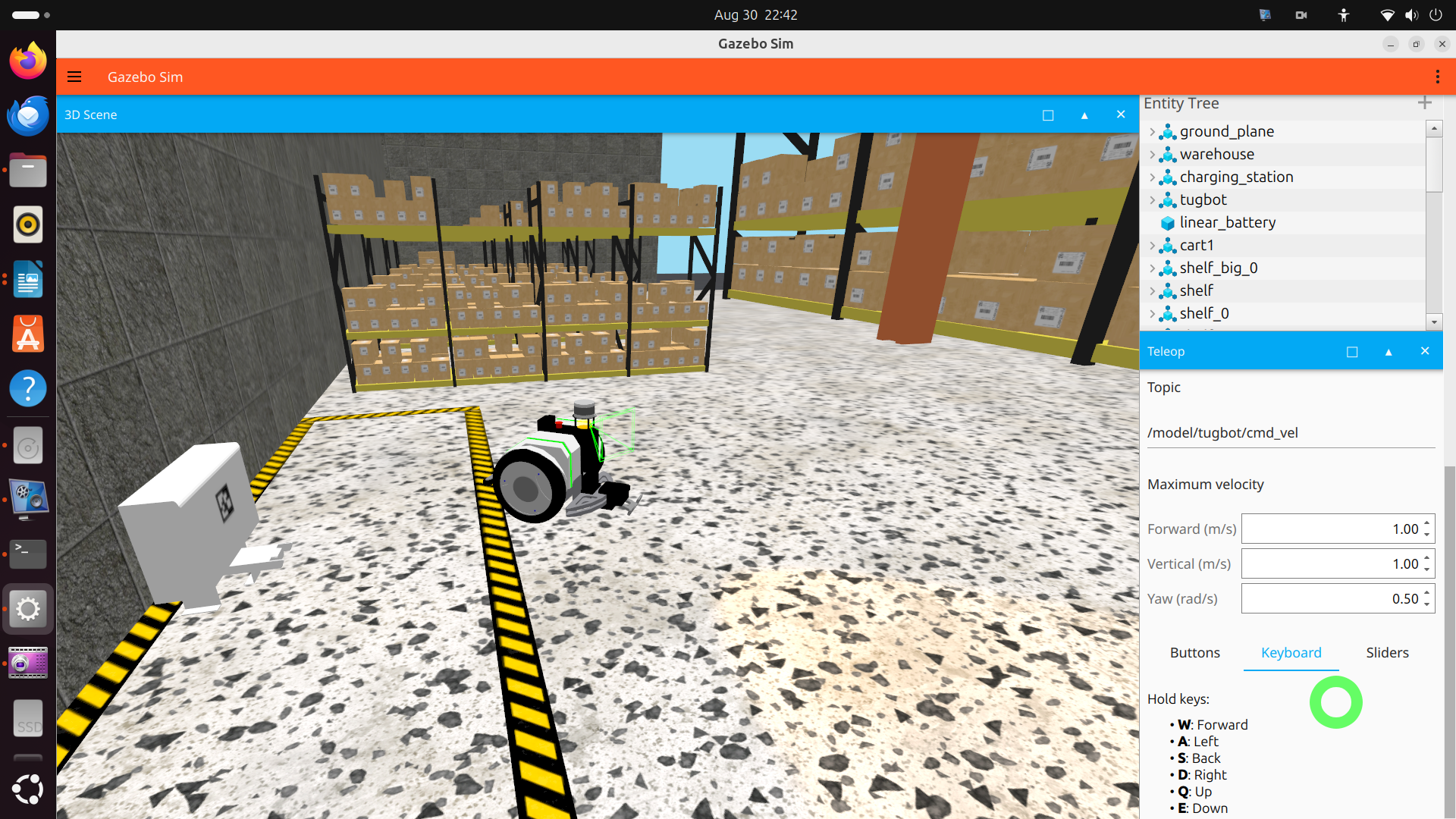
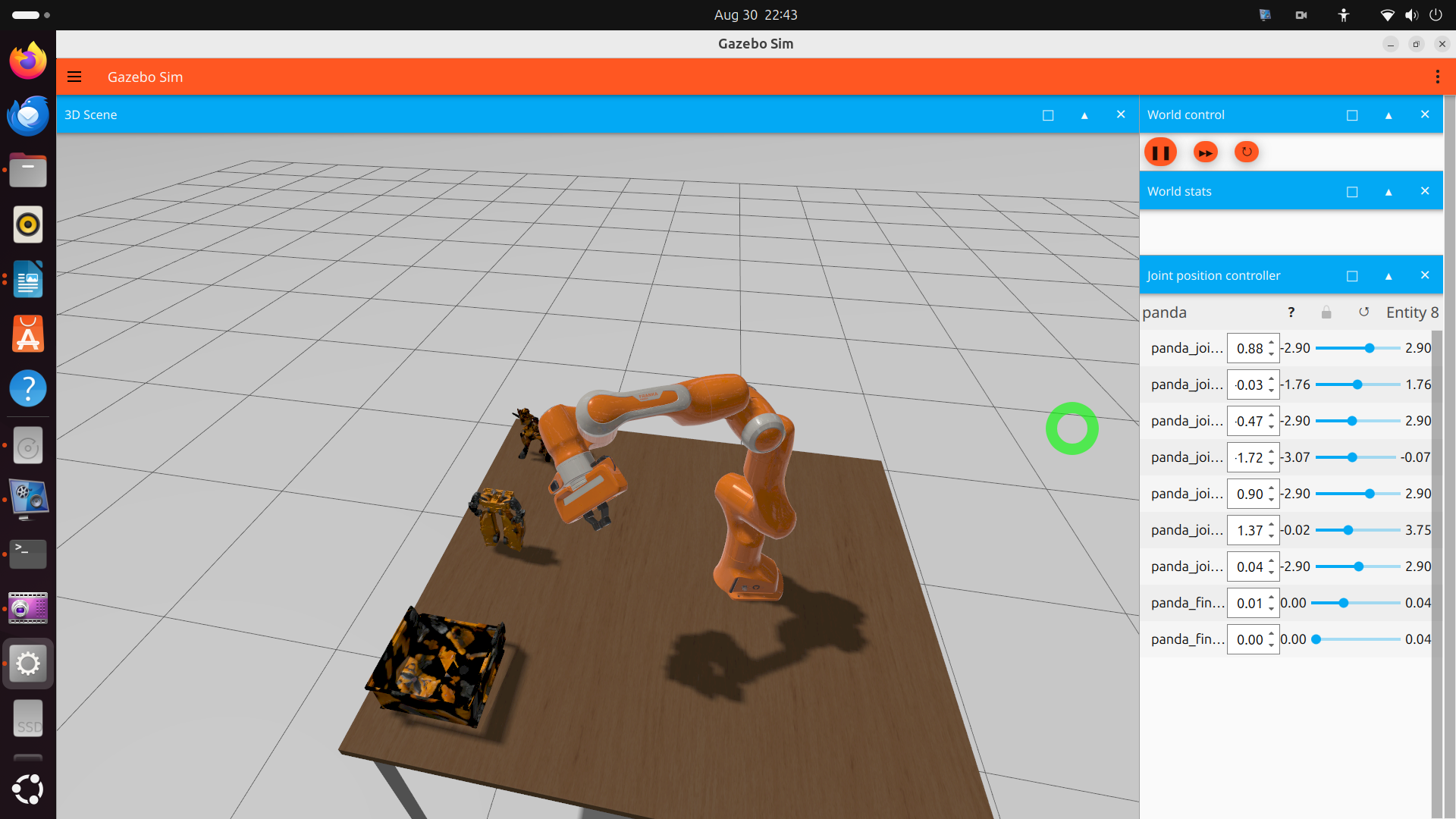
gz simThis should open the main GUI window where you can choose your simulation world. The mobile robot in a warehouse and Panda robot simulation worlds are shown below.