 by
by In this tutorial on modern C++, we explain the basics of finite-state machines and how to implement them in modern C++. Finite state machines are very important for the development of control logics for a number of physical and software systems. They are widely used in robotics, automation, flight controllers, computer games, etc. Knowing how to implement finite state machines is of paramount importance for control and robotics engineers.
YouTube tutorial is given below.
Basics of Finite State Machines
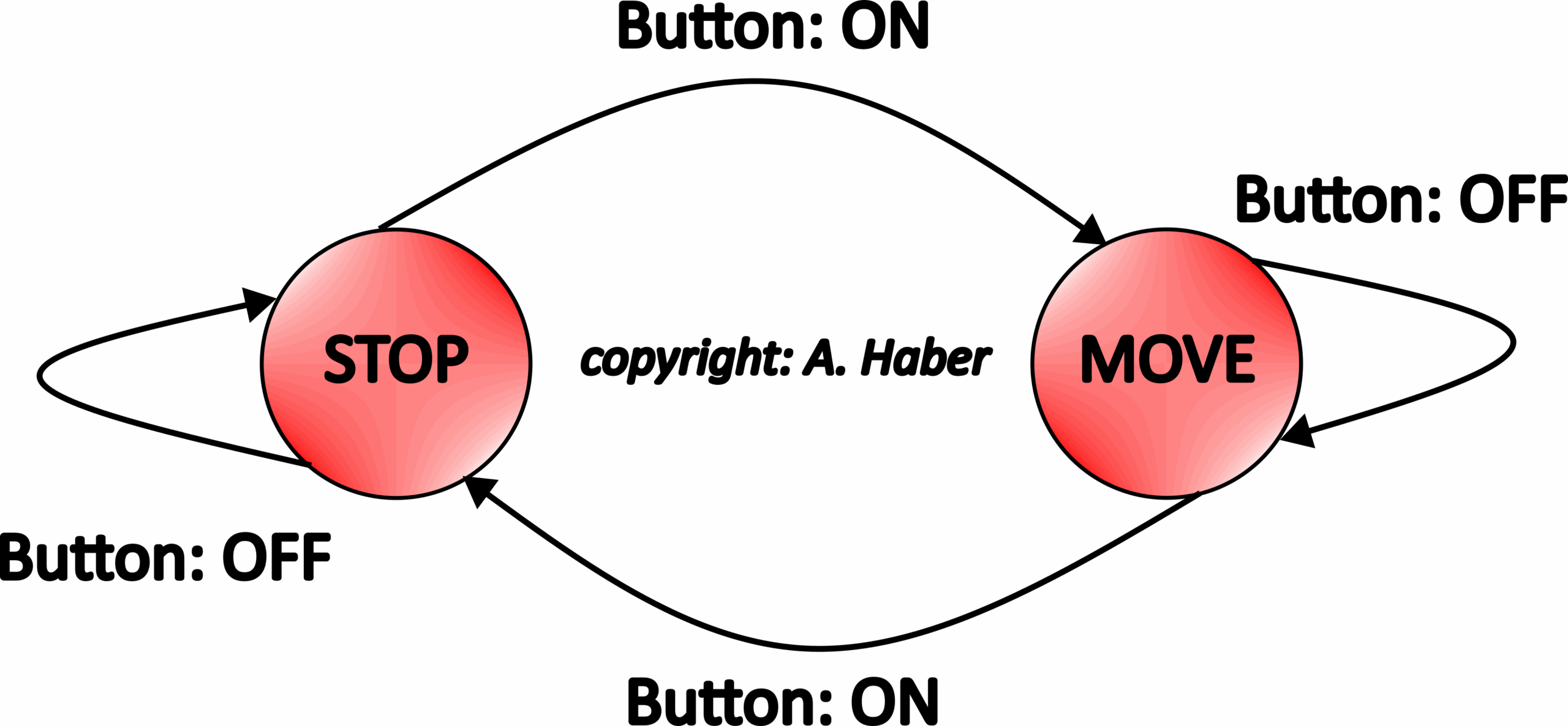
To explain the finite state machines, let us consider the following example. We have a press-button that controls the robot motion.
- When the robot is at stop and if we press the button the robot will move.
- Then, if we release the button, the robot will keep on moving.
- Then, if we press the button once again, the robot will stop.
- When we release the button, the robot should stay in stop state.
We can model this required behavior by using the graph which is known at the state transition diagram (state transition graph). The state transition diagram is shown below.
We can also describe this behavior by using the state transition table:

C++ Implementation of the finite state machines
There are several approaches to implement the finite state machines in C++
- Simple C-type of approach is to use switch statements
- C++ approach is to use maps and classes
- The most generic and robust approach is to use abstract classes and inheritance in order to have a robust solution. Finite state machine design pattern in C++ (advanced approach).
In this tutorial, we use the second approach. First we need to model the states and button inputs.
// state

enum class State{
Stop,
Move
};

// button
enum class Button{
On,
Off
};
To model the state transition table, we use the STL C++ container called map:
map<pair<State,Button>,State> stateTransition = {

{{State::Stop,Button::Off},State::Stop},
{{State::Stop,Button::On},State::Move},
{{State::Move,Button::Off},State::Move},
{{State::Move,Button::On},State::Stop},

};
Finally, let us create two additional maps that will enable us to print the state and button values:
map<State,string> printState =
{
{State::Stop,"Stop state!"},
{State::Move,"Move state!"}
};

map<Button, string> printAction=
{
{Button::On,"Button on!"},
{Button::Off,"Button off!"}
};
We write a class used to store and manage the state:
class RobotMotion{
public:
    RobotMotion()
    {
        currentState=State::Stop;
    }
    void ButtonAction(Button action)
    {
        cout<<"Previous state "<<printState[currentState]<<endl;
        cout<<"Received action "<<printAction[action]<<endl;
        currentState=stateTransition[{currentState,action}];
        cout<<"Current state "<<printState[currentState]<<endl;
        cout<<endl;
    }

private:

    State currentState;


};
The complete code with the main function is given below.
#include<iostream> //for printing
#include<map> // maps
#include<utility> // pair
#include<string>

using namespace std;

// state

enum class State{
Stop,
Move
};

// button
enum class Button{
On,
Off
};

// state transition map

map<pair<State,Button>,State> stateTransition = {

{{State::Stop,Button::Off},State::Stop},
{{State::Stop,Button::On},State::Move},
{{State::Move,Button::Off},State::Move},
{{State::Move,Button::On},State::Stop},

};

map<State,string> printState =
{
{State::Stop,"Stop state!"},
{State::Move,"Move state!"}
};

map<Button, string> printAction=
{
{Button::On,"Button on!"},
{Button::Off,"Button off!"}
};

class RobotMotion{
public:
    RobotMotion()
    {
        currentState=State::Stop;
    }
    void ButtonAction(Button action)
    {
        cout<<"Previous state "<<printState[currentState]<<endl;
        cout<<"Received action "<<printAction[action]<<endl;
        currentState=stateTransition[{currentState,action}];
        cout<<"Current state "<<printState[currentState]<<endl;
        cout<<endl;
    }

private:

    State currentState;


};


int main()
{
    RobotMotion motion1;
    motion1.ButtonAction(Button::Off);
    motion1.ButtonAction(Button::On);
    motion1.ButtonAction(Button::Off);
    motion1.ButtonAction(Button::On);
    return 0;
}